- Before You Start
- Step 1 — Install the Apple Shortcuts App
- Step 2 — Install the Send Blaster Pro Shortcut
- Step 3 — Prepare Your Messages
- Step 4 — Transfer the Message File to Your Apple Device
- Step 5 — Send the Messages
- Updating the Shortcut
- Tips for Smooth Sending
- Troubleshooting
- Important Notes
- Recommended delays
Send Blaster Pro lets you send personalized iMessages and SMS directly from your iPhone, iPad, or Mac using Apple’s official Shortcuts app.
Messages are sent through your own phone number, so recipients see them as coming from you — just like regular blue (iMessage) or green (SMS) bubbles.
No third-party servers are used — everything happens safely on your Apple device.
Before You Start #
To use Send Blaster Pro with iMessage or SMS, make sure you have:
- An iPhone, iPad, or Mac that can send messages through the Messages app.
- The Apple Shortcuts app installed.
- An active SIM or eSIM if you’re sending from your iPhone and like to fallback to sms.
- Send Blaster Pro installed on your computer and your account active.
💡 Tip: For the best performance, use the latest iOS or macOS version and keep your Shortcuts app updated.
Step 1 — Install the Apple Shortcuts App #
Most Apple devices already have the Shortcuts app pre-installed.
If not, you can download it for free here:
Apple Shortcuts on the App Store
Shortcuts is Apple’s official automation tool that Send Blaster Pro uses to send your messages automatically.
Step 2 — Install the Send Blaster Pro Shortcut #
Next, install the Send Blaster Pro Shortcut.
This shortcut reads your prepared message file and sends each text automatically.
Install it directly using this link:
Send Blaster for iMessage
Once installed, it will appear inside the Shortcuts app on your iPhone, iPad, or Mac.
Step 3 — Prepare Your Messages #
- Open Send Blaster Pro on your computer.
- Select Apple Messages (iMessage) from the platform dropdown.
- Enter your message and personalize it using placeholders (e.g.,
{{name}}). - Add your recipients manually or upload them via Excel.
- Click Prepare Messages.
This creates a message data file containing all your texts.
You’ll transfer this file to your Apple device in the next step.
Step 4 — Transfer the Message File to Your Apple Device #
- Download the message data file from Send Blaster Pro.
- Send it to your iPhone or iPad or Mac using AirDrop, email, or Files app.
- Open the Send Blaster for iMessage Shortcut in the Shortcuts app.
- When prompted, select the message file you just transferred.
This option keeps everything private and local to your device.
Step 5 — Send the Messages #
Once the message file is loaded:
- Open the Shortcuts app on your iPhone, iPad, or Mac.
- Tap the Send Blaster Pro Shortcut to start sending.
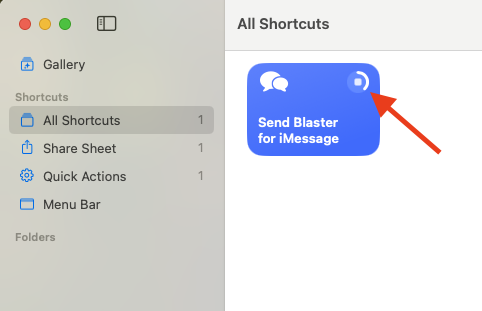
- The Shortcut will automatically send each message one by one.
- Use Start from Send Blaster shortcut directly and select the file transferred or downloaded
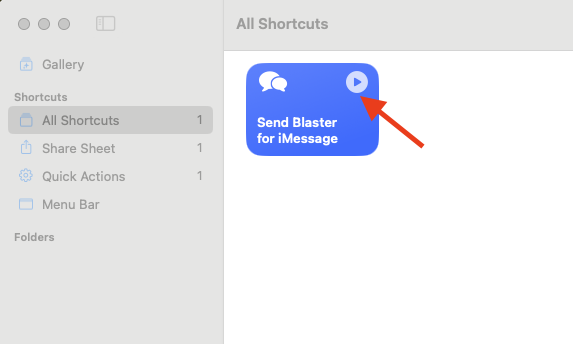
💡 On the first run, iOS may ask for permissions (like access to Messages).
Tap Always Allow so you won’t be prompted again next time.
You can stop sending anytime by tapping Stop in the Shortcuts app.
Updating the Shortcut #
You’ll be notified if your Send Blaster Pro Shortcut is outdated.
To update:
- Open the Shortcuts app and delete the old Shortcut.
- Reinstall it using the same installation link – Install Send Blaster for iMessage.
This ensures you have the latest improvements and bug fixes.
Tips for Smooth Sending #
- Start with a small batch (5–10 messages) to test setup.
- Keep the Shortcuts app open during sending.
- Don’t lock your phone or switch apps until sending is done.
- If you get “Message Failed to Send,” try tapping Send as Text Message manually once — future messages should send automatically.
- Enable Send as SMS in iPhone Settings → Messages.
- The Shortcut will automatically resume where it left off if interrupted.
Troubleshooting #
| Issue | Solution |
|---|---|
| Shortcut stops early | Keep the Shortcuts app open while it’s running. |
| Message failed or not delivered | Open the Messages app, tap the red “!” next to the message, and choose “Try Again.” |
| Shortcut asks for permissions repeatedly | Tap Always Allow when prompted. |
| Can’t send to Android numbers | Make sure “Send as SMS” is enabled in your iPhone’s Messages settings. |
| Shortcut won’t run | Reinstall the Send Blaster Pro Shortcut and retry. |
Important Notes #
- The Shortcut sends messages from your own iPhone number — no external servers.
- One message is sent at a time; sending speed depends on your device and carrier.
- Apple may limit how fast messages can be sent automatically.
- iMessage (blue bubble) is used whenever possible; SMS (green bubble) is used as fallback.
Recommended delays #
This is battle tested delays by our user.
| Issue | Solution |
|---|---|
| Delay | Random: 15sec – 30sec |
| Hourly limit | Not available |
| Daily limit | Not available |