
Send Blaster Pro can send bulk text messages (SMS and RCS) directly through Google Messages on your Android phone. It works by automating clicks and typing in Google Messages Web — so your messages are sent from your own number, not a third-party service.
Before You Start #
Make sure you’ve:
- Installed the Send Blaster Pro Chrome extension
- Set up Google Messages for Web on your computer
- Connected your Android phone to Google Messages Web
💡 Tip: If you installed the extension after opening Google Messages, just reload or reopen the Messages tab before sending.
Step 1 — Link Google Messages #
Download google messages on android if not already installed: Download Google messages
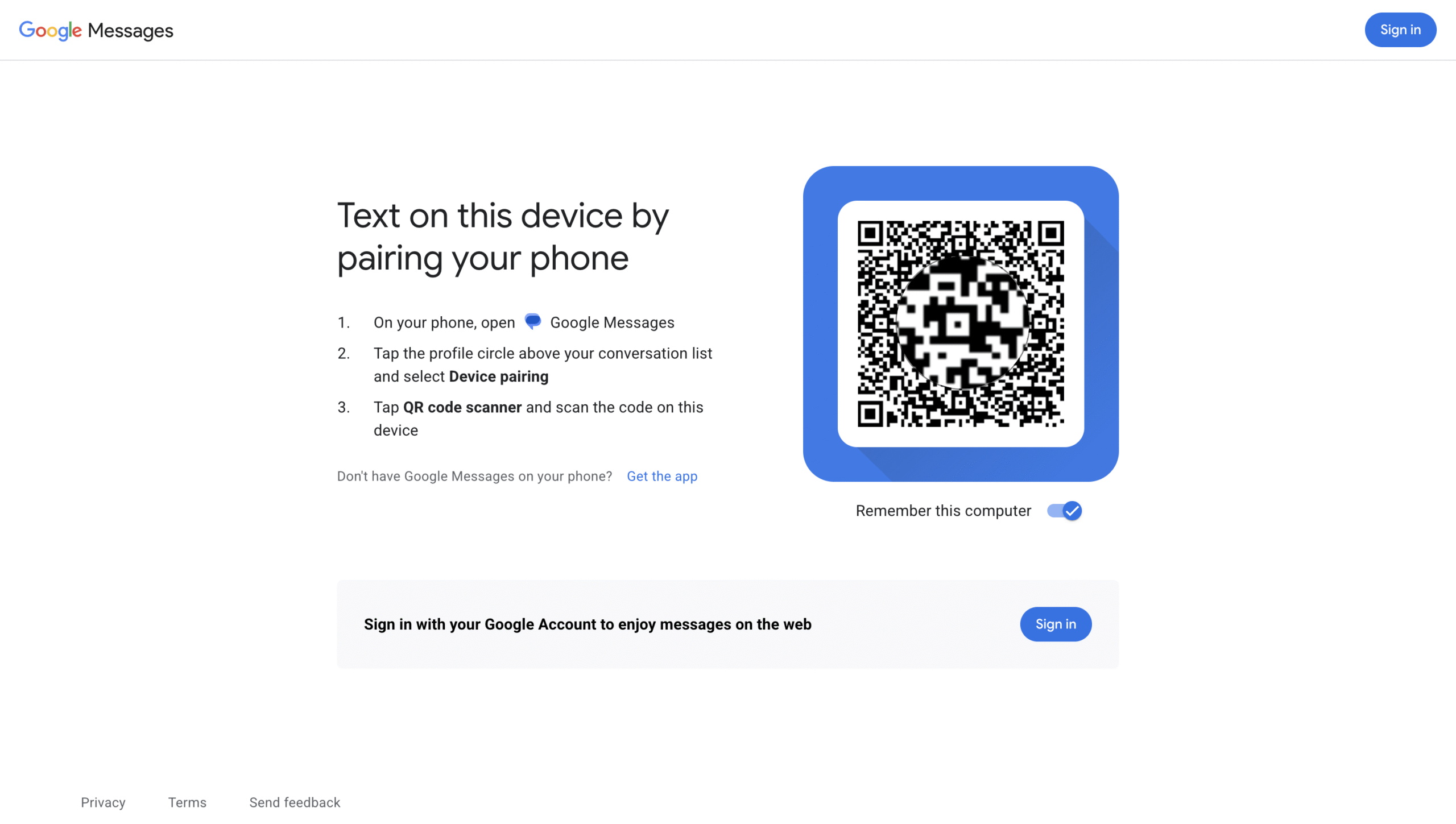
- On your computer, open messages.google.com/web.
- Open Google Messages on your Android phone.
- Tap the three-dot menu(Profile photo on top right) → Device pairing → QR code scanner.
- Scan the QR code on your computer screen.
- Wait until your phone and computer are connected — you’ll see your messages appear in the browser.
Once linked, you can send and receive texts directly through your computer using your phone’s number.
Step 2 — Compose and Send Messages #
- Open Send Blaster on your computer.
- Select Google Messages from the platform dropdown.
- Type your message or message template.
- You can use placeholders like
{{name}}to personalize your text.
- You can use placeholders like
- Add contacts:
- Upload an Excel file
- Manually enter contacts.
- Attach media (optional): Click Attach Media below your message (max size 16 MB).
- Choose a appropriate delays (to control speed and prevent rate limits).
- Click Send Messages.
Send Blaster Pro will automatically open Google Messages Web and begin sending your messages one by one.
Step 3 — Keep Google Messages Active #
- Keep your computer turned on and browser tab open while sending.
- If Google Messages disconnects, just refresh the tab and reconnect your phone.
- Don’t switch or close the tab until sending is complete.
Tips for Reliable Sending #
- Reload Google Messages Web if you recently installed or updated Send Blaster Pro.
- Keep message text conversational and personalized.
- Avoid sending identical texts too quickly — add a short delay if needed.
- If sending fails mid-way, check your phone’s connection or carrier limits.
Supported Message Types #
- SMS – Standard text messages sent via your carrier.
- RCS – Rich media messages (images, links, read receipts, etc.) sent when available.
Send Blaster Pro automatically uses RCS when both you and the recipient have RCS enabled.
Common Issues #
| Issue | Solution |
|---|---|
| Google Messages tab not detected | Reload or reopen the Messages tab, then try again. |
| Messages not sending | Ensure your phone is online and Messages Web is paired. |
| “Device not linked” message | Re-scan the QR code from your phone. |
| Media not attaching | Make sure the file is under 16 MB and only one attachment is used. |
Recommended delays #
This is battle tested delays by our user.
| Issue | Solution |
|---|---|
| Delay | Random: 15sec – 30sec |
| Hourly limit | 600 |
| Daily limit | 2000 |