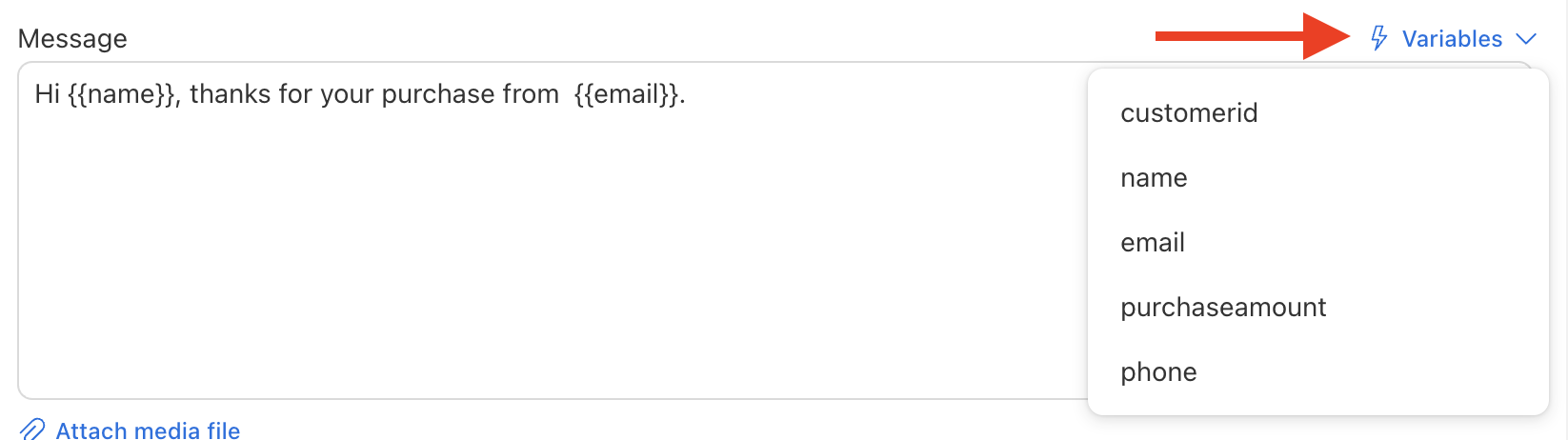
Personalization helps your messages feel unique rather than generic, available on excel upload only. See how to upload a excel. Here’s how to do it in Send Blaster Pro:
- In the message composition screen, write your message: e.g., “Hi {{name}}, thanks for your purchase of {{product}}.”
- The variables such as
{{name}},{{product}}correspond to column headers in your contact import file (for example the Excel had columns “name” and “product”). - During sending, each placeholder will be replaced with the actual contact’s data.
- Preview your first few messages to verify that personalization works correctly (no empty placeholders).
- Use personalization respectfully: avoid too many variables which may break message formatting or appear spammy.
- After personalization send your campaign. The result: each recipient gets a message addressed directly to them with the correct context.