
Send Blaster Pro lets you send personalized WhatsApp messages directly through WhatsApp Web — no phone-side setup or complex integrations required.
Messages are sent from your own WhatsApp account, so your recipients will recognize you immediately.
Before You Start #
To send messages through WhatsApp, you’ll need:
- An active WhatsApp account on your phone.
- WhatsApp Web access (your phone must stay connected to the internet).
- The Send Blaster Pro extension installed and logged in.
💡 Tip: Make sure WhatsApp Web is open and connected before starting a send.
Step 1 — Select WhatsApp as Your Platform #
- Open Send Blaster Pro on your computer.
- Select WhatsApp from the platform dropdown.
- Compose your message — you can personalize it with placeholders (like
{{name}}). - Optionally, attach image or video (max size 16MB).
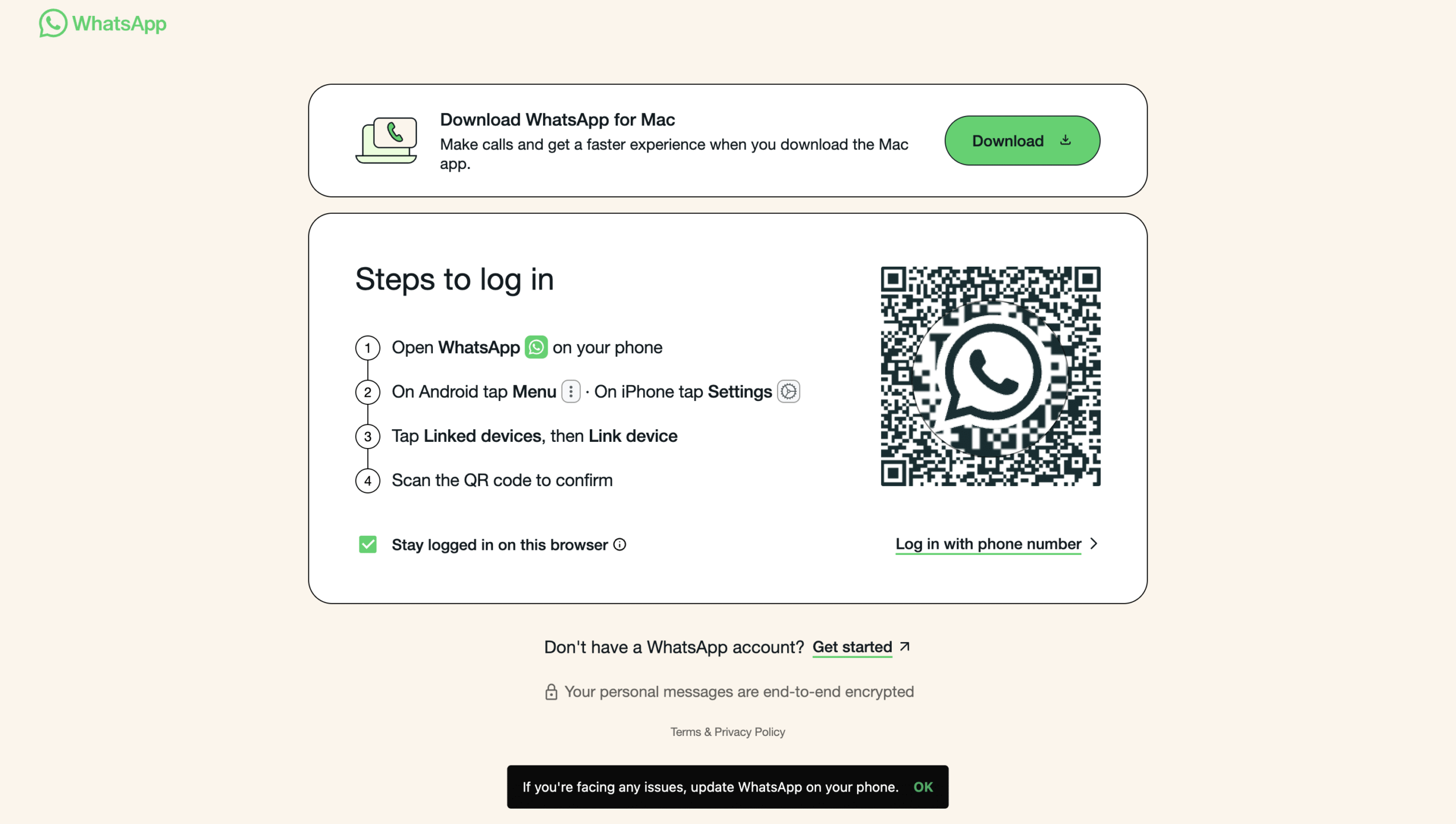
Step 2 — Login to WhatsApp Web #
- Open https://web.whatsapp.com in your browser.
- On your phone, open WhatsApp → Tap Linked Devices → Tap Link a Device.
- Scan the QR code displayed on your computer.
Once logged in, you’ll see your WhatsApp chats in the browser.
Step 3 — Prepare and Send Messages #
- In Send Blaster Pro, load your recipient list manually or via Excel upload.
- Review your message and personalization fields.
- Click Start Sending.
Send Blaster Pro will open each contact’s chat in WhatsApp Web and send the message automatically — just as if you typed it yourself.
Step 4 — Monitor Progress #
- The progress bar in Send Blaster Pro will show how many messages have been sent.
- If WhatsApp Web disconnects, simply reconnect your phone and click Resume.
- Each message is sent individually — no group messages or broadcasts are used.
Important Notes #
- WhatsApp limits how fast messages can be sent — avoid sending too many too quickly to prevent temporary rate limits.
- Only one media file per message is allowed.
- File size limit is 16MB (Send Blaster Pro’s internal limit due to Chrome message size).
- The tool does not upload or store your media; everything is sent directly through WhatsApp Web.
- Keep WhatsApp Web open and visible in your browser while messages are being sent.
Troubleshooting #
| Issue | Solution |
|---|---|
| Messages not sending | Make sure you’re logged into WhatsApp Web and your phone is online. |
| WhatsApp Web disconnects | Reconnect your phone and refresh the page. |
| Image not sending | Ensure the file is under 16MB and attached via “Attach media below message.” |
| Message stopped midway | Check your internet connection, then click Resume. |
| “Session expired” message | Re-link your WhatsApp account by scanning the QR code again. |
Would you like me to make a shorter “Quick Setup” version of this too (like a 5-step summary guide you can show inside your app UI or sidebar)?
That’d be great for first-time users who just need the essentials without the full explanations.
Recommended delays #
This is battle tested delays by our user.
| Issue | Solution |
|---|---|
| Delay | Random: 30sec – 1min |
| Hourly limit | 30 |
| Daily limit | 30 (Currently WhatsApp is limiting no response chats) |