
Table of Contents
Send Blaster Pro lets you include media file (image, video, or PDF) with your bulk messages across supported platforms like Google Messages, iMessage, and WhatsApp.
This guide explains how to attach and send media safely and within system limits.
File Rules #
- Supported file types: JPG, PNG, MP4, PDF
- Maximum file size: 16 MB per message (Send Blaster system limit based on Chrome’s message size limit)
- Best performance: Keep files under 5 MB for faster sending
How to Attach Media #
- Open Send Blaster Pro.
- Choose your platform (Google Messages, iMessage, or WhatsApp).
- In the message composer, type your message.
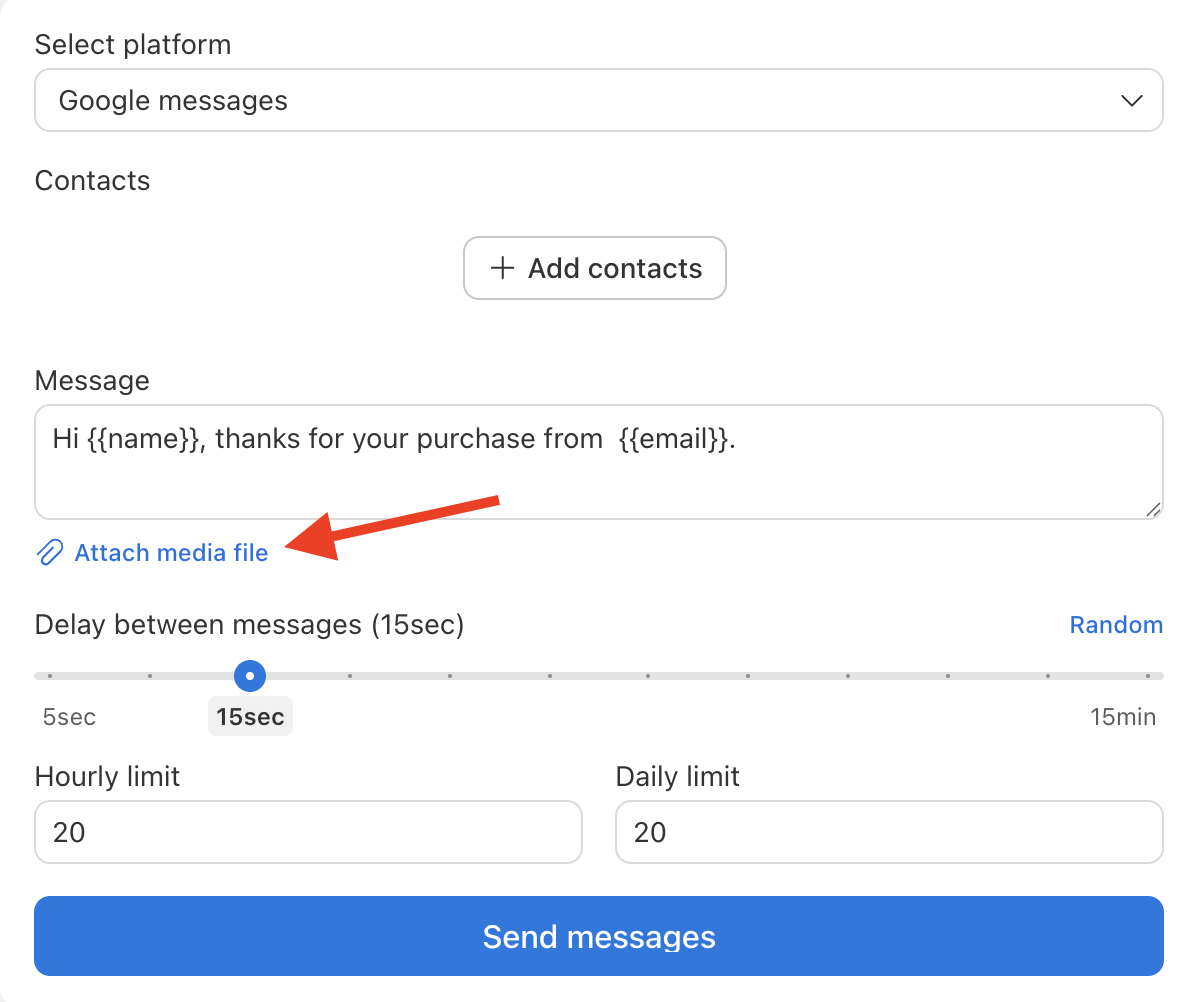
- Click Attach Media below the message box.
- Select an image, video, or PDF from your computer.
- Preview your message — your file will appear just below the text.
- Click Send to begin sending your batch.
Send Blaster Pro automatically handles file uploads and attaches your chosen file to each outgoing message.
Important Notes #
- The attached file is sent along with every message in the batch.
- If the selected file exceeds 16 MB, Send Blaster will prevent sending and show an error.
Common Issues #
If your media fails to send, check for:
- File size larger than 16 MB
- Unsupported file format
- Temporary internet or phone disconnection
- Platform app not open or logged in
Tips for Reliable Sending #
- Resize or compress large images/videos before uploading.
- Always test with one or two contacts before sending a large batch.